Reseller guide
What your cabinet can do, and the order to do it in: from paying for slots to a client watching on their TV, and what to do when a client leaves.
Before you start
An approved cabinet
You sign in to your reseller cabinet with the email we approved. We send a code to it each time.
The client's TV
An LG (webOS) or Samsung (Tizen) TV with the SmartTV Club app from the TV's app store.
A phone next to the TV
The client activates the TV by scanning the QR code on the TV screen with a phone.
Working with a client, step by step
-
You · Subscription & payments
Pay for your slots
One slot is one TV. Choose how many slots you need and pay by card: Monthly by card renews by itself, Prepaid covers several months at once. You can add slots later.
-
You · Activation codes
Make an activation code for the client
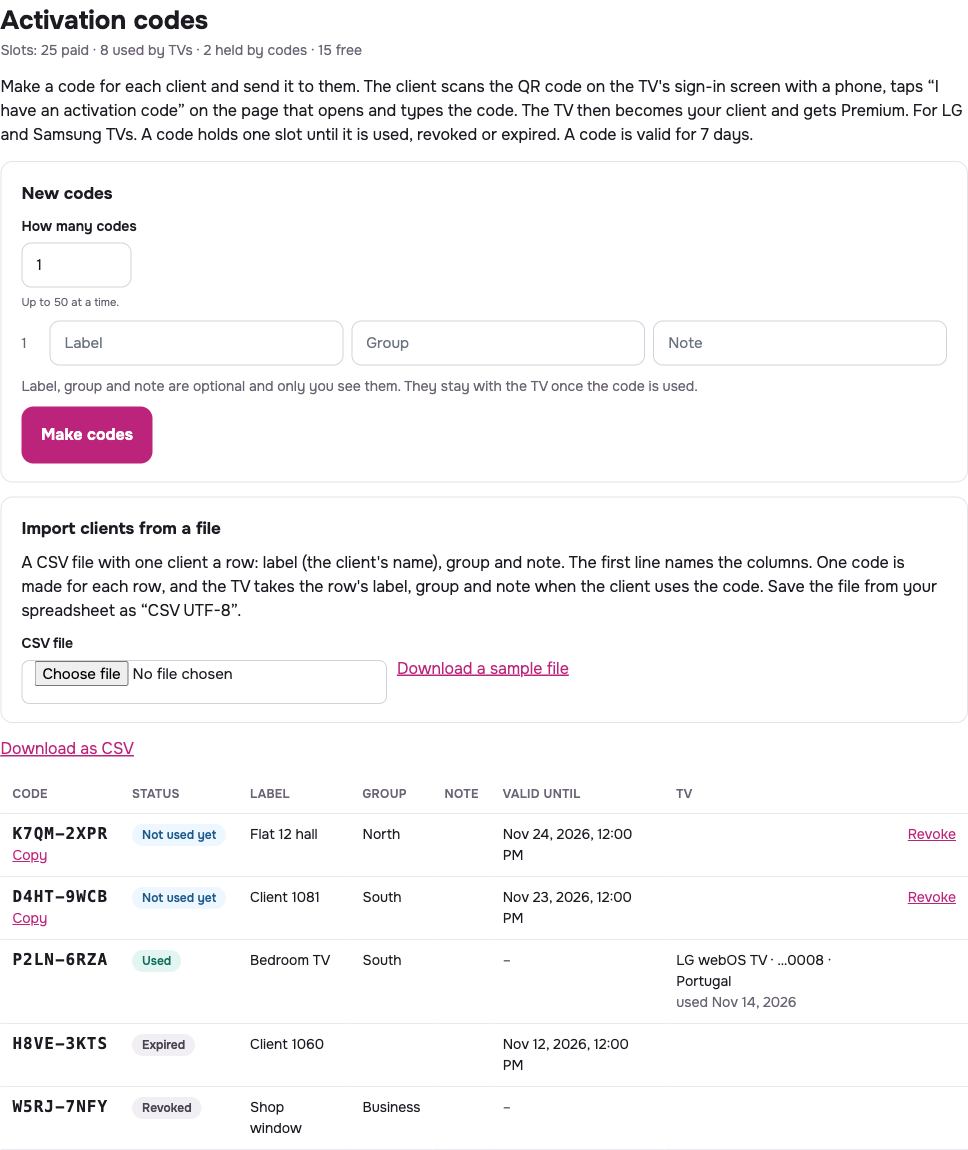
Under Activation codes › New codes, make one code per client. A label, group and note are optional and only you see them; the TV keeps them once the code is used. A code holds one of your slots until it is used, revoked or expires. A code is valid for days.
Starting with many clients? Import clients from a file makes one code for each row of a CSV file, and Download the new codes (CSV) saves the codes it made.
-
You
Send the code to the client
Press Copy and send the code the way you usually talk to the client. Tell them to have the TV and a phone ready.
-
Your client
The client activates the TV with the code
The client opens SmartTV Club on the TV and scans the QR code on the TV's sign-in screen with a phone, taps “I have an activation code” on the page that opens and types the code. The TV's sign-in screen is under Settings › Sign In / Sign Up › SIGN IN OR SIGN UP.
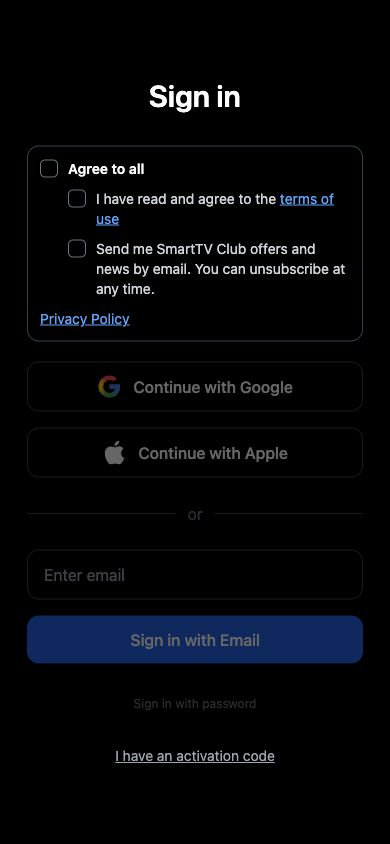
The page the TV's QR code opens: the link is at the bottom 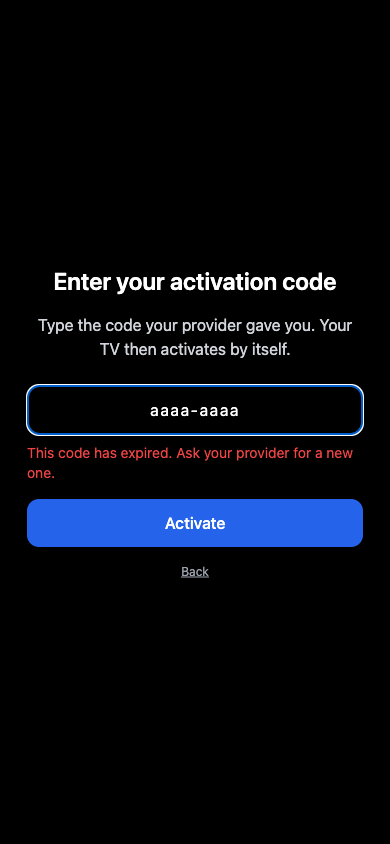
The client types your code (here: an expired one) 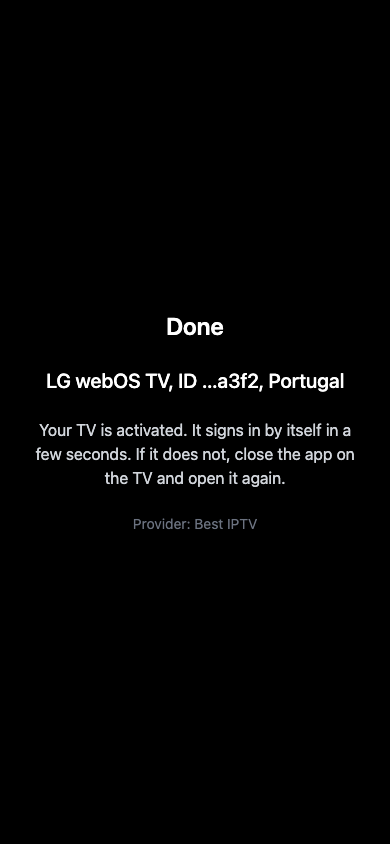
Done: the TV, and your name as the provider The TV signs in by itself within seconds and gets Premium; if it does not, the client closes the app on the TV and opens it again. Nothing is typed on the TV.
-
You or your client
Add the playlist
The playlist goes onto the TV the same way as on any SmartTV Club TV: the client or you upload it on our website with the code the TV shows. Upload Channels
-
You · Clients
Check that the TV watches
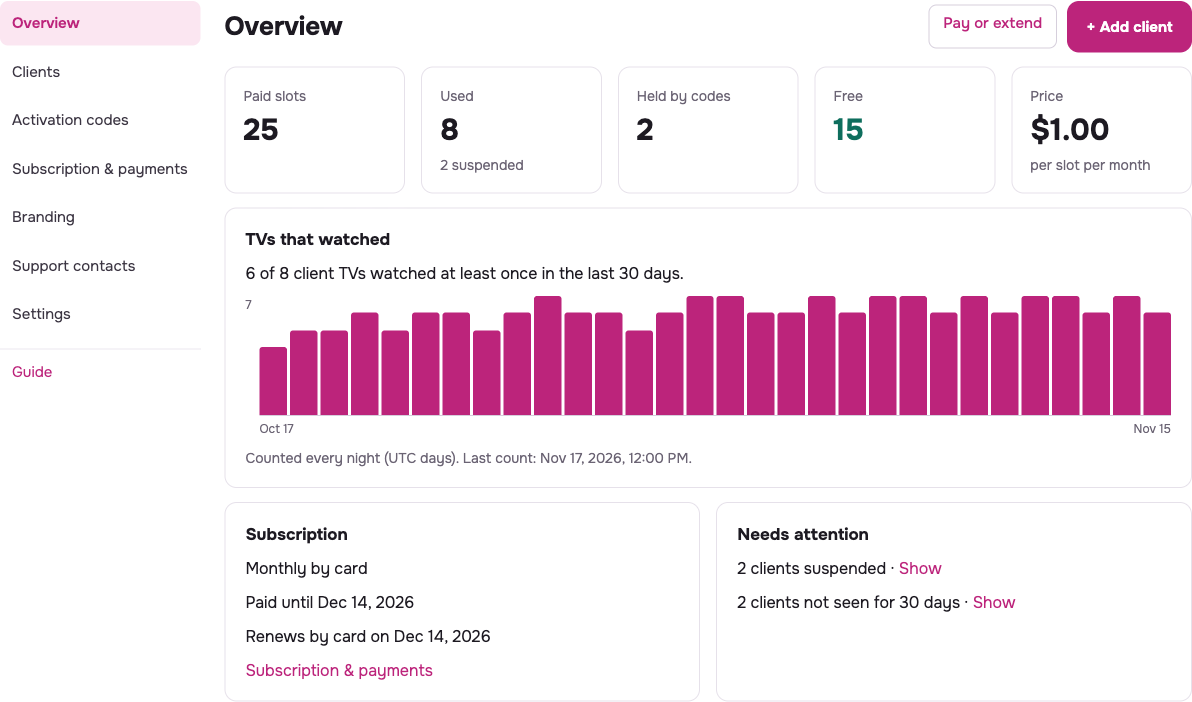
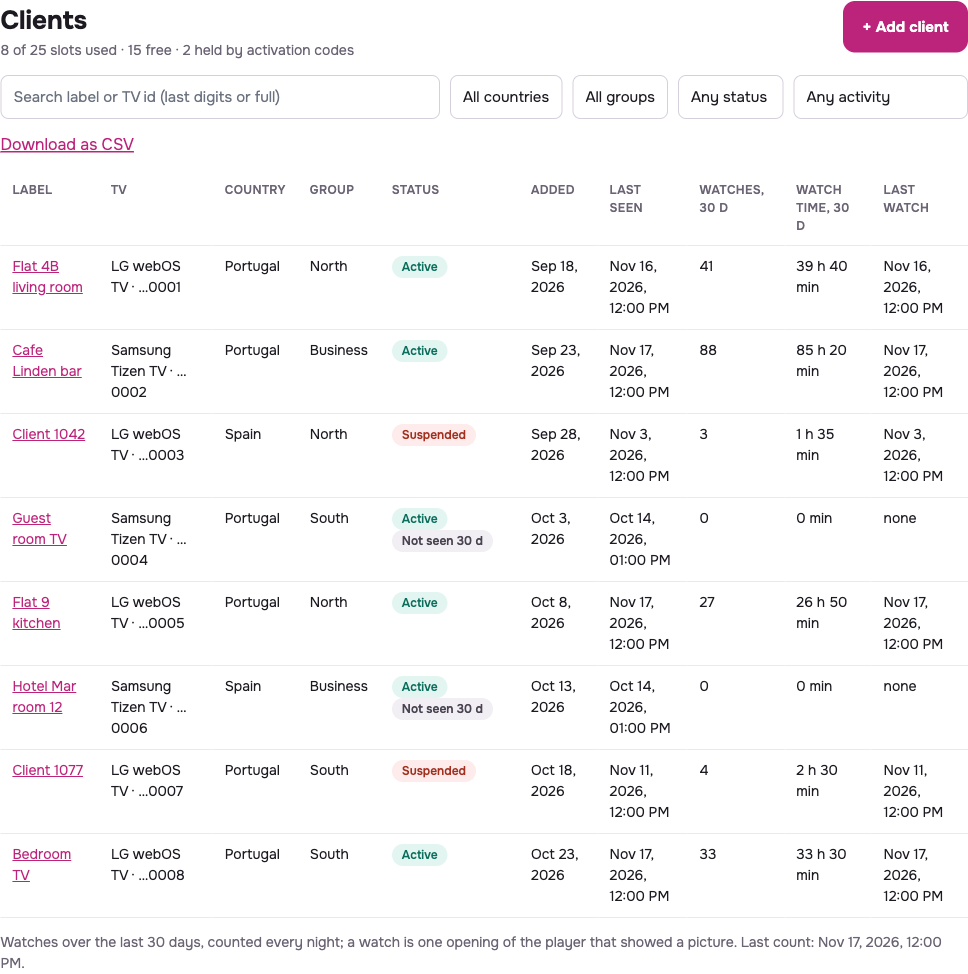
The client now appears in Clients with the label you gave the code. Last watch and Watches, 30 d show whether the TV is used, and Overview shows TVs that watched per day. Watches are counted every night, so a new TV shows figures the next day.
-
You · Subscription & payments
Keep the slots paid
Monthly by card renews by itself. With Prepaid the cabinet reminds you in the last days of the period: prepay again or switch to monthly payments. If the paid period ends, your clients keep Premium for 3 more days. After that their TVs go back to the free player, with ads, but they stay on your account: pay again and Premium comes back.
-
You · Clients
When a client stops paying you, or leaves
- Suspend: the TV loses Premium and keeps its slot. Resume gives Premium back.
- Disconnect…: the TV leaves your account and becomes an ordinary SmartTV Club TV. The slot is free at once; make a new code for the next client.
Your cabinet, section by section
The names below are the names in the cabinet's menu. The screens show made-up clients.
Overview
Your paid, used and free slots, how you pay and until when, and Needs attention: suspended clients, clients not seen for 30 days, TVs over your paid slots. TVs that watched shows the last 30 days.
Clients
Every TV on your account with its label, group, country, status and last watch. Search by label or by the last digits of the TV id, and filter by group, country, status or activity.
Open a client for its card: change the label, group and note, Suspend or Resume, Restart the app on the TV, or Disconnect… to free the slot.
Activation codes
Make codes, one per client, and send them. The list shows each code as Not used yet, Used, Expired or Revoked. Revoke stops a code you no longer need and frees its slot.
Import clients from a file takes a CSV file with a label, group and note per row and makes a code for each.
Subscription & payments
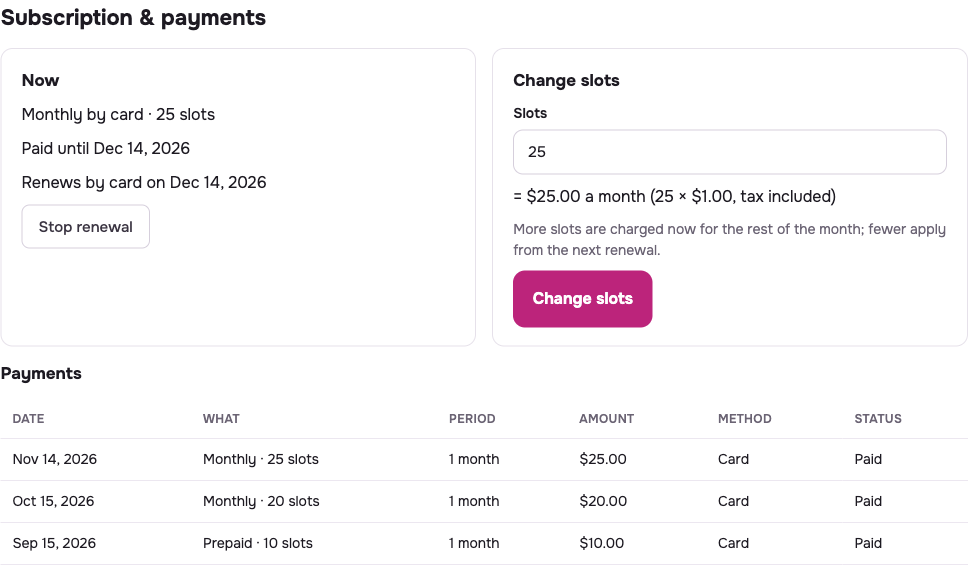
How you pay, how many slots and until when. With monthly payments you can Change slots or Stop renewal; during a prepaid period you can buy Extra slots for the rest of it. Payments lists every payment with its status.
Branding · Support contacts
You can fill in your name, logo, colour and support contacts now. Your clients' TVs show them after a TV app update. Until then the TVs show SmartTV Club's own look and help.
Settings
Your company and the Email for notices, where payment and renewal notices go. Sign out signs you out of the cabinet.
Money in plain words
Price
per slot per month, tax included. At least slots.
Two ways to pay
Monthly by card, which renews until you stop it, or Prepaid for several months at once, with no renewal. Up to months.
A failed card payment
The cabinet shows a notice and Stripe tries the card again over the next days. If the paid period ends before a payment goes through, your clients keep Premium for 3 days: pay before then.
What your clients pay you
That is between you and them. Their TVs never show our prices, plans or offers.
When something does not work
The client's page says the code is wrong, used or expired
“That TV is signed in to another account”
No free slot
The client has an Android TV
The TV still shows ads or a time limit
A channel or film does not play
Questions about your reseller account: [email protected]. Your clients ask you, not us.